

Excel is still the most widely used software in projects at many companies – even though it isn’t really a project management tool. Find out when using the popular Office program in a project makes sense – and when it doesn’t. And when an Excel alternative like InLoox pays off.
Excel is one of the most widely used Office programs and therefore very popular with many project team members. The power of habit often plays a big role here. The versatile tool certainly has its place, and in certain cases using Excel as a project management tool does make sense. But there are also cases and situations in which Excel reaches its limits.
Why are you looking for an Excel alternative?
- Because you don’t want to spend time adjusting Excel plans.
- Because you want to see phases & milestones as well as tasks in one view.
- Because you want to be notified about delays automatically.
The list could go on and on. If you spend more time maintaining and updating your Excel plans and task lists than on the actual project work, it’s time to face reality: your projects have outgrown Excel. You need professional project management software that meets your increased requirements.
Where Excel makes sense in projects!
- Checklists for meetings, as a scope statement or statement of work, or for project closure
- Task list for quickly capturing to-dos at the start of a project
- Pivot tables for visualizing project reports
Excel spreadsheets are particularly suitable for simple task lists that form the starting point for project planning. This way, the relevant to-dos can be captured quickly and easily at the start of the project. Even when several people merge their Excel task lists, duplicates can be removed relatively easily and the content prepared consistently. The task list thus forms a good basis for project planning.
It’s similar with classic checklists: whether a scope statement or a statement of work, a meeting checklist or a checklist for a specific project phase. Excel is ideal for this: the Excel document can simply be attached to the relevant task, activity or milestone in the project plan and is thus stored as a template on the file server.
With the help of Excel’s core function, spreadsheet calculation, data can be filtered, analyzed in detail and visualized extremely well. Project managers use these functions for their reporting. Project status, budget overview or the current planned vs. actual effort, for example, can be visualized across departments in pivot tables. You can capture the status quo in Excel and forward it to the stakeholders involved, or simply print it out and take it to the meeting.
External project team members – who have no access to the company’s internal project management tool for licensing reasons – can be given the part of the project plan that is relevant to them in an Excel spreadsheet. In it, external project participants can check off the tasks assigned to them and enter the hours they have logged. Because the data matches the project plan in formatting, title and task descriptions, this is a very structured and traceable way of working. In the worst case, “externals” would cobble everything together themselves, creating extra work for the project manager, since everything would then have to be transferred to the project plan and adjusted manually.
So wherever Excel can play to its strengths as a spreadsheet tool. An Excel file containing only the relevant parts of a project plan can also be useful for sharing with external staff. However, this is also where the program’s biggest weaknesses come from.
The limits of Excel
You can create task lists and checklists, but in the end Excel is and remains a simple spreadsheet without business logic. You only keep track of relatively short lists. But as complexity increases and the task list gets longer and longer, it becomes increasingly confusing. Beyond a certain level of complexity, simple lists are simply no longer enough – you then have to work with pivot tables and macros. These manual adjustments take time and energy, and above all someone who knows how to use them.
Excel is also of limited use as a reporting tool. Project managers are under enormous pressure to complete projects on schedule, stay within budget and deliver the quality defined in advance. To manage projects effectively, reports and analyses must be available quickly and easily at any time. So the data should not only be available with one click, but above all accurate. In Excel, this is not always the case: one wrong formula or a small typo, and the data is no longer correct.
In the cloud or via the internal company server, several people can work on a document at the same time, but this requires a great deal of discipline from everyone involved. As soon as someone saves and changes the document locally, the online document is no longer up to date. This can quickly lead to version chaos.
Of course, you can in principle create Gantt charts in Excel and use conditional formatting or VBA programming to build in automatic adjustments. You can also prepare your resource utilization across all projects using pivot tables. And you can always add a comment field for communication among project team members.
Is it worth the effort?
Much is possible, but it often involves additional effort. For less complex projects with few or no dependencies, a short project duration and small teams, this may still be manageable. As soon as the project grows, becomes more complex with numerous dependencies and involves a large number of participants, you should ask yourself whether this extra effort also adds value.
These are the challenges you might face if you want to manage your projects with Excel alone:
- Changes cannot be reflected in real time.
- Adjustments have to be checked manually, because Excel is error-prone when changes are made.
- Complex projects and multi-project views are difficult to map.
- Resource capacities cannot be updated in real time.
- When resources are involved in several projects, things quickly become confusing.
A tool alone is not project management
Ultimately, you have to decide for yourself whether you want to use Excel exclusively for project work. It doesn’t have to be an either-or decision – Excel works extremely well together with project management software. After all, the main goal is to implement projects successfully and create value for the company.
Buying a professional project management tool does not automatically lead to more effective project work. The purchase may give the impression of practicing professional project management. But if the software is not used properly, if employees don’t use the tool at all, or if processes and structures are not professionalized, even the most advanced project software is of no use.
For project management to be effective, it must be aligned with the corporate strategy. There must also be a clear methodology and defined processes by which projects are carried out. And most importantly: project team members must actually work with the project management tool in place. So it is important to create user acceptance for the PM tools in use.
Originally published on the projektmagazin blog on July 13, 2017: Wo Excel im Projekt Sinn macht – und wo nicht (in German)
InLoox – your Excel alternative for project management
Excel-style list views: projects, tasks, documents, time tracking
InLoox offers filtering, sorting and formatting options that can be used for custom list views. This lets you create and save your own views in the project list, task list, document list and time tracking list and make them available to other employees in InLoox.
So anyone coming from the Excel world will quickly find their way around InLoox and discover: what Excel can do, InLoox can do too – only more conveniently.
Multi-project planning: an end to Excel file chaos
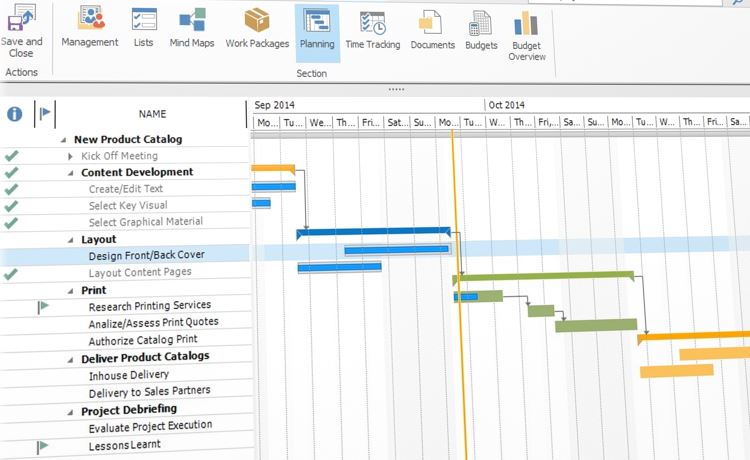
A complex project often consists of many subprojects that make clear navigation of your Excel plan simply impossible. Where you previously resorted to complicated “monster formulas” from the Excel bag of tricks, InLoox offers two convenient functions for multi-project planning: the publishing and grouping functions.
Dependencies between several projects can be mapped in InLoox by publishing activities or milestones in other projects. This creates multi-project planning that ensures transparency and clear scheduling across team and department boundaries.
Project grouping in InLoox lets you combine the entire planning of several projects in one view. Changes made in the individual projects are shown in the overall project plan.
Workload & resource allocation: transparency across all projects
Graphical multi-project resource management and capacity utilization in InLoox integrates the free/busy concept of Exchange Server. This means that calendar appointments are shown and taken into account when allocating resources and planning projects – whether they are people, rooms or machines: you have a central, always up-to-date overview of all relevant resources. Bonus: public holidays are simply imported into InLoox and automatically used for correct calculations.
You see capacity utilization at team or department level in real time and can easily reassign tasks to another resource when needed to counteract bottlenecks and delays.
In the browser, as a mobile app and with add-ins for Outlook and Teams
- InLoox runs in the browser and as a mobile app on smartphones and tablets
- InLoox is available as a self-hosted or cloud solution
- InLoox complements Outlook and Teams with add-ins
InLoox supports you and your team throughout the entire process: from the first consultation through on-site training and custom adjustments to interface development.
Switching doesn’t mean starting over, because InLoox brings over existing plans from Excel, Microsoft Project or Planner and fits into Outlook, Teams and SharePoint.


Try InLoox as your Excel alternative for free
Plan and manage your projects in InLoox: with Excel-style list views, multi-project planning and workload across all projects.
Start your free trial
Name
Please enter your name.
Business email
Please enter a valid email address.
Something went wrong. Please try again later or contact support@inloox.com.
Prefer to talk first? Book a consultation
Already have an account? Sign in