Search
Using the search bar at the top of the page, you can search your InLoox account:
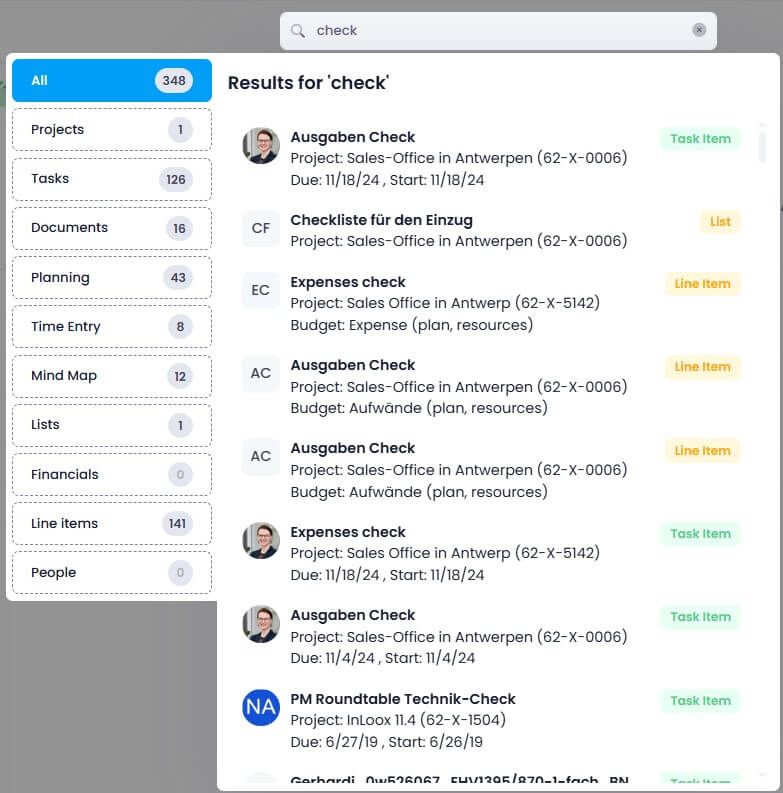
InLoox delivers results from the second letter typed and searches the following categories:
- Projects: Name, project number, customer name, description text as well as custom fields.
- Tasks: Name, status name, description, contact name, project name as well as custom fields.
- Documents: File name, status, e-mail sender/recipient, subject, internet link, description, project name as well as custom fields.
- Planning: Name, location, WBS code, description, and additional, individually defined fields.
- Time entries: Name, description, and additional, individually defined fields.
- Risks: Name, description, and additional, individually defined fields.
- Mind Map: Name of mind map nodes, and additional, individually defined fields.
- Lists: Name of the list
- Financials: Name of the financial plan
- Financials (Line Items): Name of the line item, description and additional, individually defined fields.
- People: Display name, address, company name, street, postal code, city, country, position, website, department, assistant, email, status, description.
These categories on the left side of the search results menu are clickable. A maximum of 50 results per category are displayed in descending order by “last modified.”
The following elements are displayed in the search results:
- Projects: Project image, project name, and project number
- Tasks: Profile picture of the assigned person, project name and (project number), due date, and start date
- Documents: File name, document path, project name, and (project number)
- Planning: Name of the planning element, project name, and (project number), type of planning element (task, collective task, or milestone)
- Time entry: Profile picture of the assigned person, name of the time entry, project name, and (project number), recorded time, start date of time recording
- Risks: Name of the risk, project name, and (project number)
- Mind map: Name of the mind map, project name, and (project number)
- Lists: Name of the list, project name, and (project number)
- Financials: Name of the financial plan, project name, and (project number)
- Line items: Name of the budget item, project name, and (project number), budget type
- People: Profile picture, name of the person, email address
If you click on a search result, InLoox takes you directly to the respective element and opens, for example, the time tracking entry in the associated project.
Search options
- Multiple terms (tokenized search): If you enter multiple search terms, InLoox will return results containing at least one of the search terms. For example, if you enter social media, results containing 'social' 'media' and 'social' + 'media' will be displayed.
- Partial match: You don't always have to know the complete term. Even entering half a word will return hits that contain that part. For example, if you enter pro, results containing 'project', 'prototype', or 'reproduction' will be displayed.
- Exact match: Enclose a search term in double quotation marks, e.g., “Aufbau Messe 2024,” to only get results that contain that exact phrase. This is helpful when searching for very specific terms or phrases.
Permissions for the search results
All search results are filtered according to user permissions. This means that only data records to which the user has access are displayed. This ensures that data protection and security requirements are met.
Notes on searching in InLoox
The following is not searched:
- Document content
- Document path
- Comments
- Currency, date, number or decimal fields of the custom fields
- List items (list names are searchable)