Save list view
You are here: InLoox Support Knowledge Base Online Help InLoox Web App 11.0 All Topics | InLoox Web App List views Save list view
After you have customized your list view with the columns you need, grouped them or added filters, you can save this list view.
Save as a new list view
If you want to save the view under a new name:
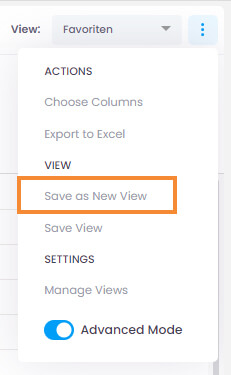
- click on the three dots in the upper right corner and select Save as New View.
- Then type in the name of this new view und click Save.
Make this view usable for all users in your InLoox account
If you want other team members in your InLoox account to be able to use this view, you have to make it a global view:
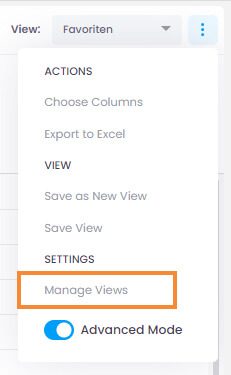
- Click on the three dots in the upper right corner and select Manage Views.
- There you see a list of all the saved views, e. g. in the section Projects.
- Simply activate the Visible for All.
Now, every user of your InLoox Account may select this view in the respective InLoox section.
Save changes to an existing view
If you want to save the changes you have made to the view you are using at the moment,
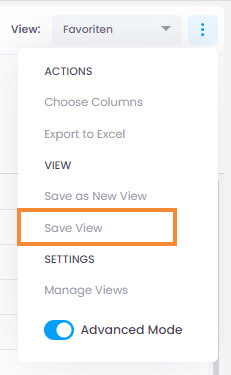
- click on the three dots in the upper right corner and select Save View.
- InLoox saves your changes automatically.
NOTE If this view is a global view, the changes will not be saved!
