Creating User Groups for Projects
Note: Available only in the InLoox Enterprise, InLoox Enterprise Plus, and InLoox Self-Hosted editions.
You need InLoox administrator permissions to access the account settings.
- Click your profile picture and select InLoox Account Settings.
- Under User Management, open the Groups tab.
- Click New Group. InLoox will create a new group in the list.
- Click in the name field and enter a name for the group.
- Click Select Contacts at the top and either enter the name of the person you want to add or scroll through the list. Users must be InLoox users in order to be added to a group, as they need at least read access to project data.
The newly created group can now be assigned to roles within projects. To do this, open a project and click the Add People icon in the upper-right corner.
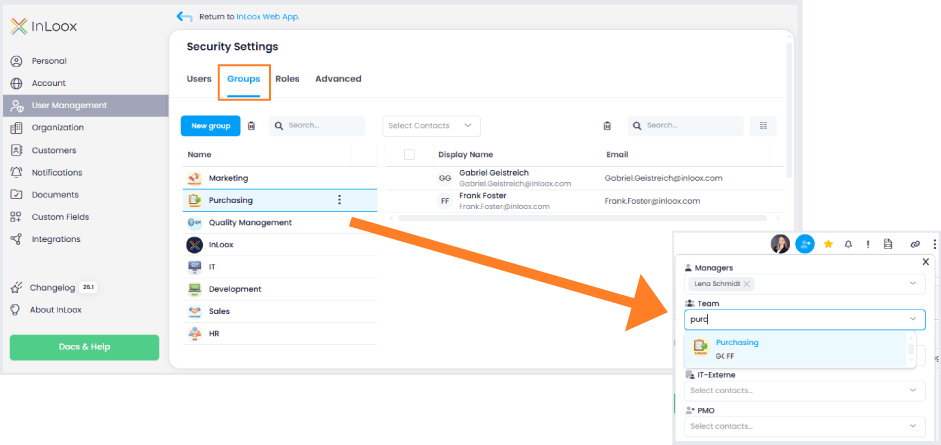
Editing a User Group for Projects
- Select the group from the list.
- To remove a person from the group, select the person in the list and click the trash can icon in the upper-right corner. The person will be removed from the group.
- To add a person, click Select Contacts at the top, search for the person or scroll through the list, and select them. They will be added to the group.
InLoox automatically synchronizes any changes made to a group. This means: You can add additional members to the group at any time. If the group already has a role assigned in a project, newly added members automatically receive the corresponding role permissions in that project. You do not need to reassign the group. If a person is removed from the group, InLoox automatically updates the change in the project as well.
Deleting a User Group
You can delete groups at any time.
Select the group and either:
- Click the trash can icon in the upper-left corner,
- Click the three dots menu, or
- Right-click the group and select Delete Group.
- InLoox will ask you to confirm the deletion. Click Delete to proceed.
Important: When you delete a group, it is also removed from all projects where it has been assigned to a role.
Customizing the View
You can add additional columns to the list of users within a group.
Click the column icon in the upper-right corner and select the columns you want to display in the list view.
The following columns are available:
- Department
- Company
- Mobile
- Last Name
- City
- ZIP Code
- Street
- Phone
- First Name
You can also sort, filter, and group the list by columns. Right-click a column header and select the desired option from the context menu.