Dashboard Designer
You can use the Dashboard Designer to design completely new dashboards or customize existing dashboards according to your needs.
Create new dashboard
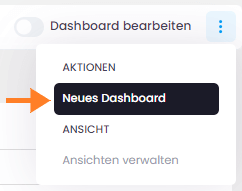
Click on the three vertical dots at the top right and then on New Dashboard.
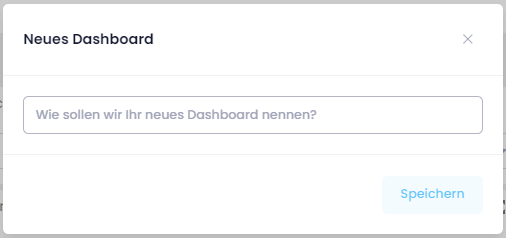
Enter a name for the dashboard and save it.
Afterwards, the Dashboard Designer opens.
Set a global filter for your dashboards
Since InLoox 11.17, you can set a global filter for your InLoox Dashboards in order to e.g. exclude archived projects from all Dashboards widgets and subsequently views or set a specific time frame.
- In InLoox Web App, go to Dashboards.
- Click on the three dots in the upper right hand corner and select Create new Dashboard.
- Name your new Dashboard.
- Click on the dashboard menu on the left and select Data Sources.
- Make sure, InLoox is marked, then select one of the areas you need to filer and click on the edit icon.
- In the window Dashboard Data Source Wizad, click on Run Query Builder...
- In the window Query Builder, click on Query Properties.
- Click on the three dots in the field Filter.
- In the window Filter Editor, click on the Plus Icon next to And and put in your filter.
- Click OK to set the filter for all your InLoox Dashboards.
If you e.g. want to exclude all your archived projects from your dashboards, enter this filter: AND - Projekcts.Project_IsArchived - Equals - False
You can now select the fields that are relevant to you from the various elements on the left and drag and drop them into the dashboard. Examples include text fields, various types of diagrams, tables and many more. You must base these elements on a data source.
Undo/Redo
If you want to undo an entry, use the Undo/Redo function, which has also been available in the Dashboard Designer since InLoox 11.16. Use the arrows in the top left-hand corner.
Refresh Dashboard
To ensure the dasboard displays up-to-date real-time data, click the Refresh button. This reloads the dashboard with the latest data while keeping the applied filters unchanged.
Customize an existing dashboard
Select the dashboard you want to customize.
Open the Dashboard Designer by clicking on the Edit Dashboard slider at the top right.
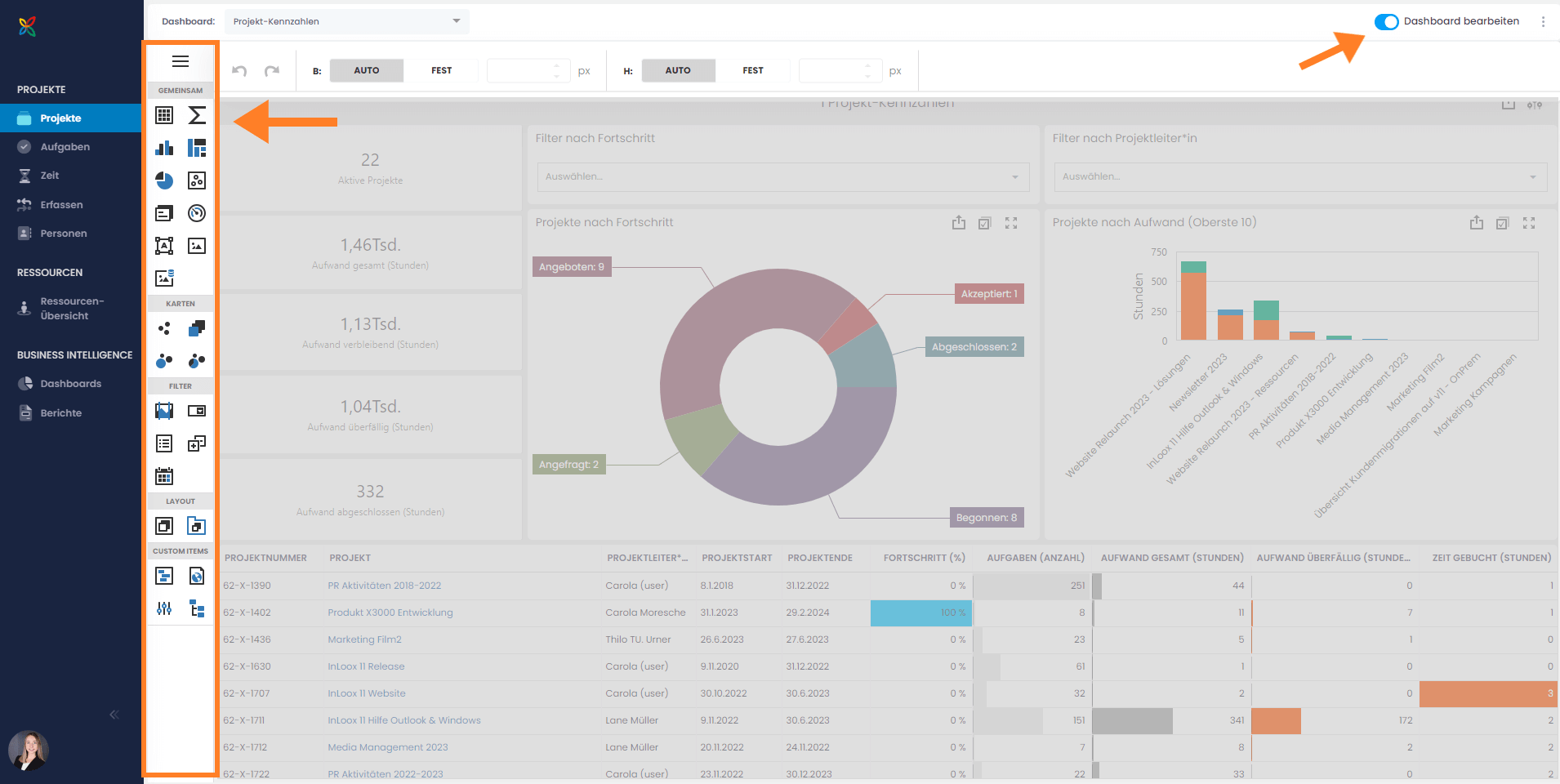
Afterwards, the Dashboard Designer opens again. Move or delete individual elements, change the data source or add new elements. This allows you to customize the dashboards according to your needs.