Getting started
Download the First Steps with InLoox PDF file:
<<First steps with InLoox PM>>
<<First steps with InLoox now!>>
Additionally, you can watch our video tutorials for InLoox for Outlook.
Welcome to InLoox for Outlook! We compiled information that helps you get started with your first InLoox project.
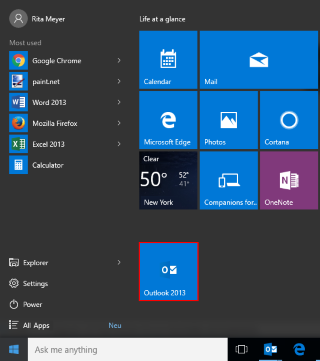
First, open Microsoft Outlook in your Windows start menu:

... or from your taskbar

-
InLoox fully integrates with Microsoft Outlook and is always available with one click.
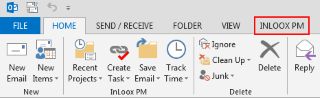
Open InLoox for Outlook by clicking on the INLOOX PM or INLOOX NOW tab in the Microsoft Outlook Ribbon.
-
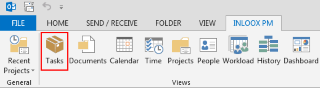
To create your first task with InLoox, click on Tasks in the Views group on the InLoox Ribbon.

-
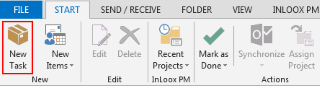
Click on New Task in the New group to create a new task.

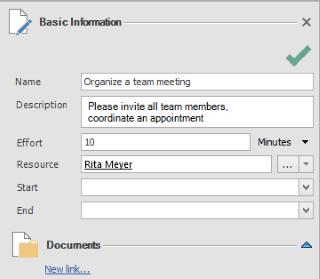
Use the side panel on the right to enter all the details regarding your task.

Congratulations, you have just created your first task with InLoox PM!

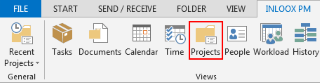
To create your first project with InLoox, please click on the INLOOX PM or INLOOX NOW tab, then click on Projects on the Ribbon in the Views group.

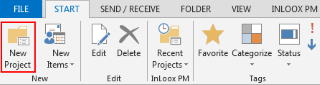
By clicking on New Project in the Ribbon on the Start tab in the New group, you will get to the management form.

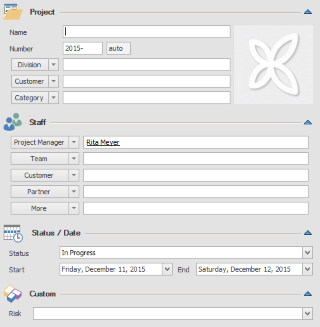
Please enter all basic data regarding your project in the management form.